
Linux Fu: Yet Another Shell Script Trick

I’m going to go ahead and admit it: I really have too many tray icons. You know the ones. They sit on your taskbar, perhaps doing something in the background or, at least, giving you fingertip access to some service. You’d think that creating a custom tray icon would be hard, but on Linux, it can be surprisingly simple. Part of the reason is that the Freedesktop people created standards, so you don’t typically have to worry about how it works on KDE vs. GNOME or any of the other desktop environments. That’s a big win.
In fact, it is simple enough that you can even make your own tray icons with a lowly shell script. Well, of course, like most interesting shell scripts, you need some helper programs and, in this case, we’ll use YAD — which is “yet another dialog,” a derivative of Zenity. It’s a GTK program that may cause minor issues if you primarily use KDE, but they are nothing insurmountable.
The program is somewhat of a Swiss army knife. You can use it to make dialogs, file pickers, color selectors, printer dialogs, and even — in some versions — simple web browsers. We’ve seen plenty of tools to make pretty scripts, of course. However, the ability to quickly make good-looking taskbar icons is a big win compared to many other tools.
Docs
Depending on what you want to do, YAD will read things from a command line, a file, or standard input. There are dozens of options, and it is, honestly, fairly confusing. Luckily, [Ingemar Karlsson] wrote the Yad Guide, which is very digestible and full of examples.
Exactly what you need will depend on what you want to do. In my case, I want a tray icon that picks up the latest posts from my favorite website. You know. Hackaday?
The Web Connection
YAD can render HTML using WebKit. However, I ran into immediate problems. The version in the repos for the Linux I use was too old to include the HTML option. I found a supposedly statically linked version, but it was missing dependencies. Even after I fixed that, the program still reported errors related to the NVIDIA OpenGL stack.
I quickly abandoned the idea of using a web browser. I turned to two other YAD features. First, the basic dialog can hold text and, in most cases, renders quasi-HTML because it uses the Pango library. However, there is also a text-info dialog built in. Unlike most other YAD features, the text-info dialog reads its input from standard input. However, it doesn’t render markup.
In the end, I decided to try them both. Why not? It is simple enough. But first, I needed a tray icon.
The Tray
YAD can provide a “notification,” which is what it calls a tray icon. You can specify an icon, some text, and a right-click context menu. In addition, it can react when someone clicks on the icon.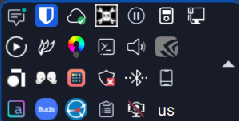
I decided to write a script with multiple personalities. If you run it with no arguments, it sets up the tray icon. If you pass anything to it, it will show a dialog with the latest Hackaday articles from the RSS feed. I wanted to make those links clickable, and that turned out to be a bit of a wrinkle. Both versions will do the job, but they each need a different approach, as you will see.
Here’s the tray code:
yad --notification --image="$0.icon.png" --text="Hackaday Now" \
--menu="Quit!quit!gtk-quit" --command="$0 show" --no-middle
You can probably guess at most of this without the manual. The image is stored in a file with the same name as the script, but with .icon.png at the end. That’s the icon in the tray. The simple menu provides an option to exit the program. If you click the icon, it calls the same script again, but with the “show” argument. The script doesn’t care what the argument is, but maybe one day it will.
So that part of the project was extremely simple. The next job is making the dialog appear.
Text Info
Grabbing the RSS feed with wget is trivial. You could use grep, sed, and bash pattern replacement to extract the titles and URLs, but I opted for awk and a brute-force parsing approach.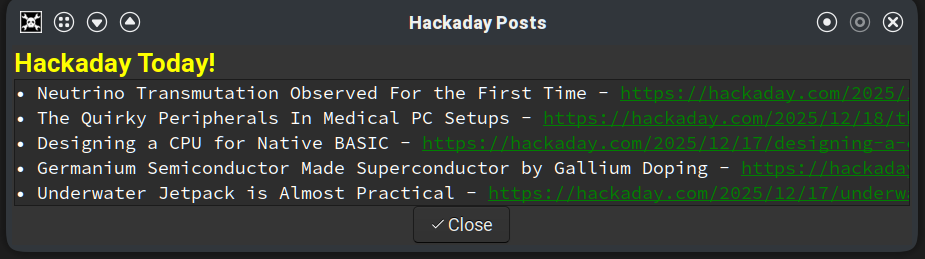
The standard output of awk pipes into YAD, but you can’t readily apply formatting or hyperlinks. You can use formatting in regular dialog text, which will appear before the other output. That’s where the yellow “Hackaday Today!” title in the adjacent screenshot gets set. In addition, you can automatically detect URLs and make them clickable using the --show-uri option.
Here’s the relevant command:
yad --text-info \
--text "<span foreground='$TITLECOLOR'><b><big><big>Hackaday Today!</big></big></b></span>" \
--show-uri --window-icon="$0.icon.png" \
--uri-color=$LINKCOLOR --width=$WIDTH --height=$HEIGHT \
--Title "Hackaday Posts" --button="Close!gtk-ok" \
--buttons-layout=center --escape-ok 2>/dev/null
You’ll notice that the –text option does take Pango formatting and the --show-uri option makes the links clickable. By default, dialogs have an Open and Cancel button, but I forced this one to have a single close button, accept escape, and I wanted the button centered.
As you can see in the screenshot, the result isn’t bad, but it does require having the title followed by a long URL that you can click on and that’s a little ugly.
Stock Dialog
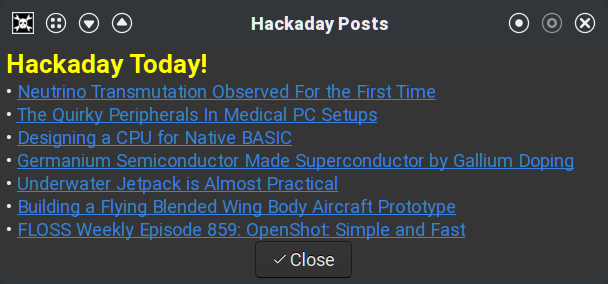
Since the –text option works with any dialog and handles formatting, I decided to try that. The awk code was nearly the same, except for the output formatting. In addition, the output now needs to go on the command line instead of through a pipe.
This does make the script a bit more unwieldy. The awk script sets a variable, since jamming the command into the already busy YAD command line would make the script more complicated to read and work with.
The YAD command is still simple, though:
yad \
--text="$DATA" \
--window-icon="$0.icon.png" \
--width=$WIDTH --height=$HEIGHT \
--Title "Hackaday Posts" --button="Close!gtk-ok" \
--buttons-layout=center --escape-ok
The DATA variable has the formatted output text. The result looks better, as you can see in the screenshot. In either version, if you click an underlined link, your default browser should open the relevant post.
Other Choices
If you want to install either script, you can get it from GitHub. Of course, you could do this in Python or any other conventional language. There are also programs for “minimizing” another program to the tray, like AllTray or KDocker, although some of these may only work with X11 and not Wayland.
It would have been nice to have an integrated browser, although, thanks again to FreeDesktop, it is simple enough to open a URL and launch the system’s default browser.
Prefer your Hackaday feed on the command line? Check out the comments for this post. Meanwhile, send us a tip (you know, a link to your project, not a gratuity) and maybe you’ll see your own project show up on the feed.